
I download Corey Haines's Marketing Skills repo, open the folder in Codex or Claude, and give it a marketing task—here's how to do the same in the desktop apps.
1. Download the folder
- Open the repo on GitHub.
- Click the green Code button, then Download ZIP.
- Unzip it: double-click on Mac, or right-click → Extract All on Windows.
- Move the extracted folder somewhere you'll keep it, such as Documents.
Keep the whole folder. Alongside the skills—files of instructions for specific marketing tasks—it contains extra references, scripts, and guides for connecting marketing tools.
2. Open it in your desktop app
Use whichever app you already have. You only need one.
In Codex
- Open the desktop app and sign in.
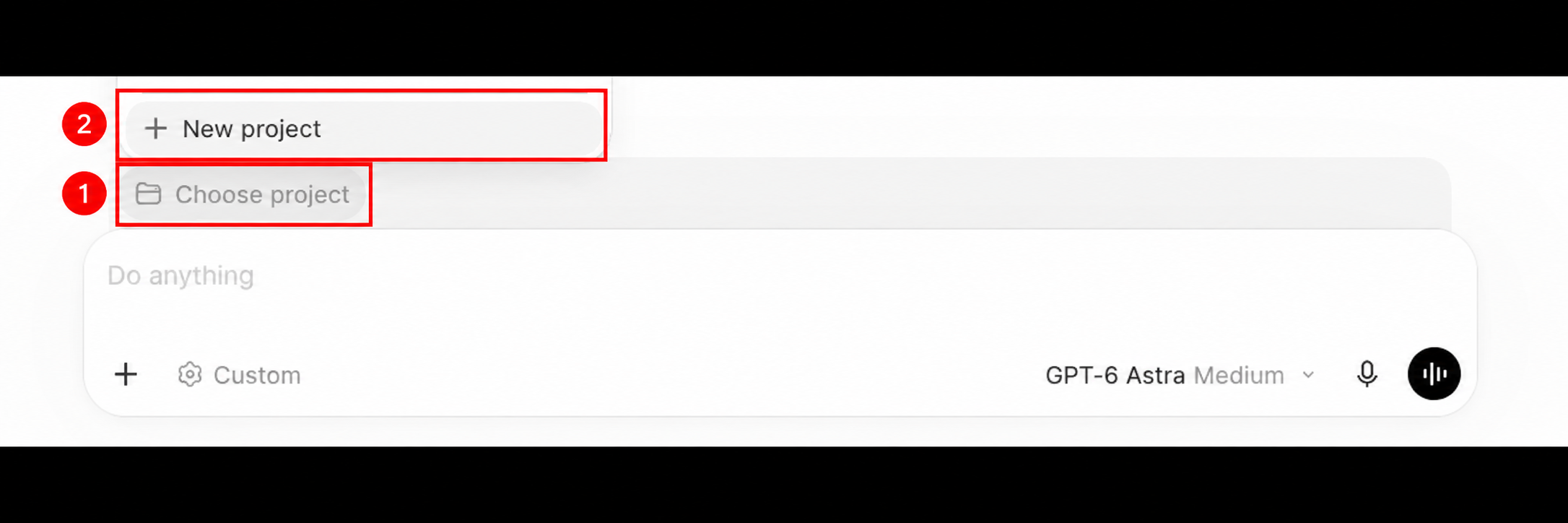
- Click Choose project, then New project.
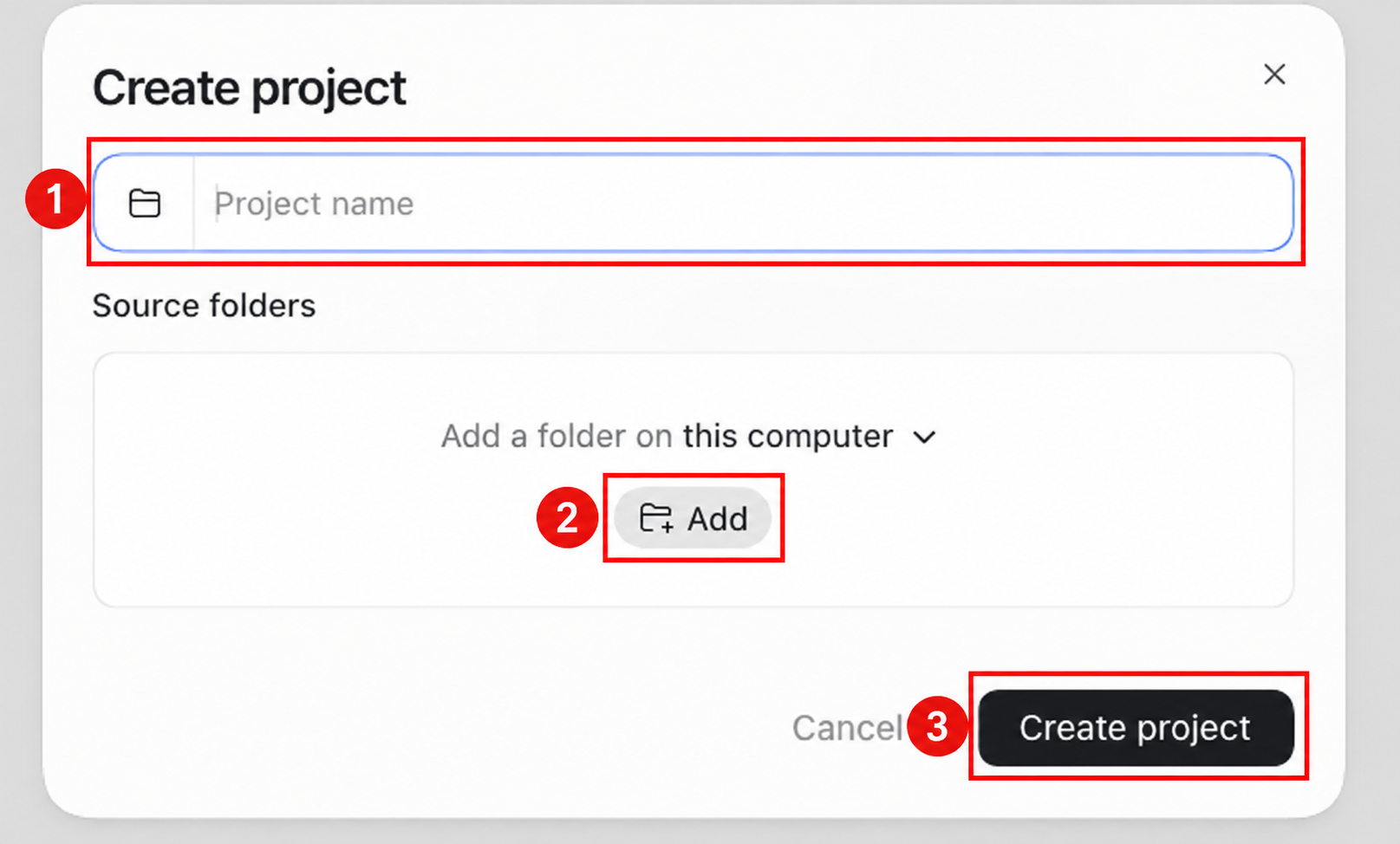
- Enter a project name, such as My Marketing.
- Under Source folders, click Add and select the extracted marketingskills-main folder (or whatever you renamed it to).
- Click Create project, then start a task in that project.
Choose the folder that contains README.md, skills, and tools.
In Claude Desktop
- Open Claude Desktop and sign in with an account that has Cowork access.
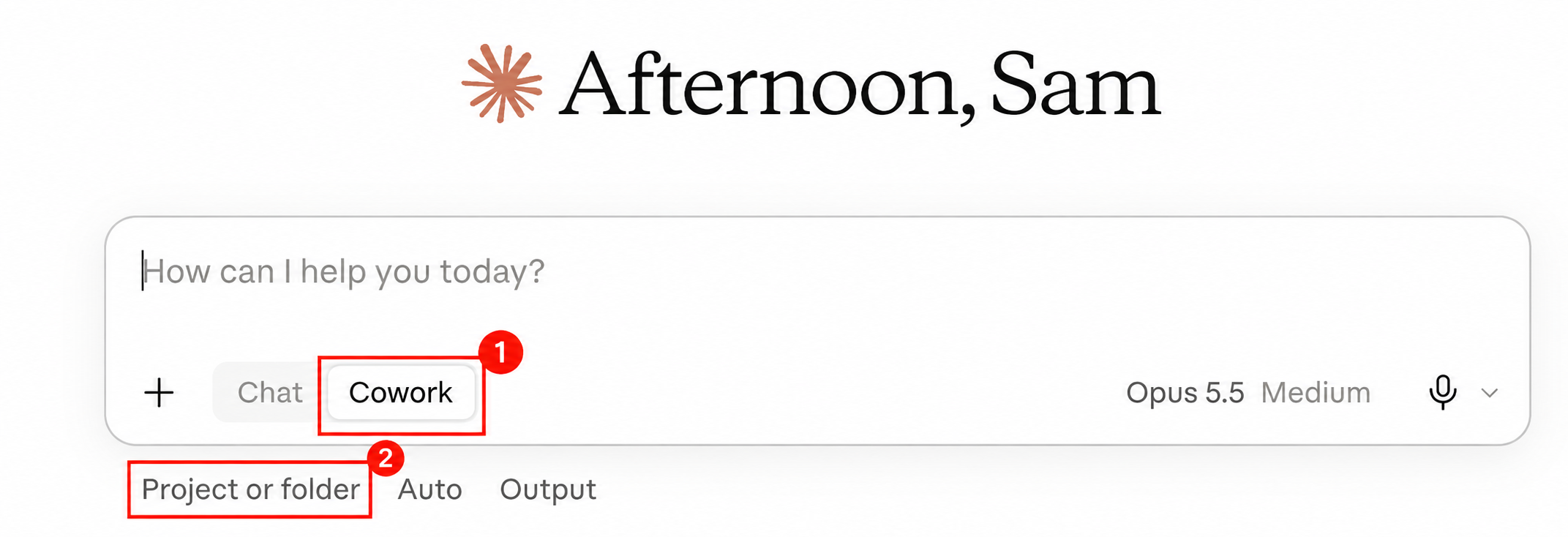
- Select Cowork, then click Project or folder beneath the message box.
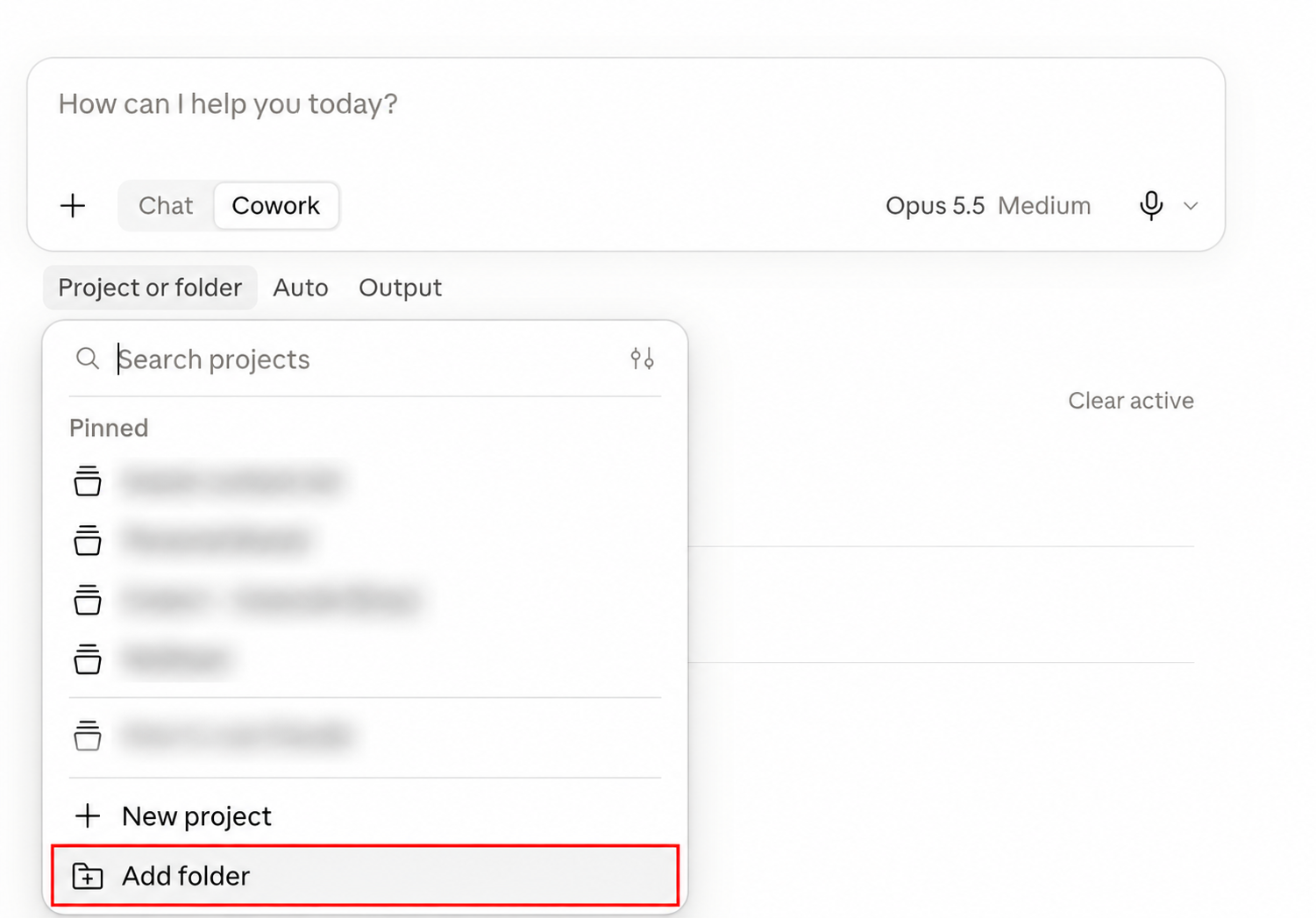
- Click Add folder at the bottom of the menu.
- Select the extracted repo folder and allow access to that folder if prompted.
- Start your task with that folder selected.
If you haven't installed an app yet, use the official Codex desktop guide or Claude Cowork guide. Account access and usage limits depend on your plan.
3. Tell it how to use the folder
Paste this as your first message in either app:
I want to use this repo for my own marketing work.

Read README.md and tools/REGISTRY.md to understand what's here.
For each task I give you, find and read the relevant skills
and supporting files before starting. Tell me briefly which
ones you're using.

Start by reading skills/product-marketing/SKILL.md. Help me
create my business context by asking questions one at a time.
Save the result to .agents/product-marketing.md after I review it.

Save finished work in an outputs folder. Keep the original
library files unchanged. If a task needs an external account,
a paid service, or extra setup, explain what's needed first.
The agent should read the files and start asking about your business. If it says it can't find them, check that you opened the extracted repo folder.
Opening the folder gives it access to the files. This prompt tells it to actually read and use them.
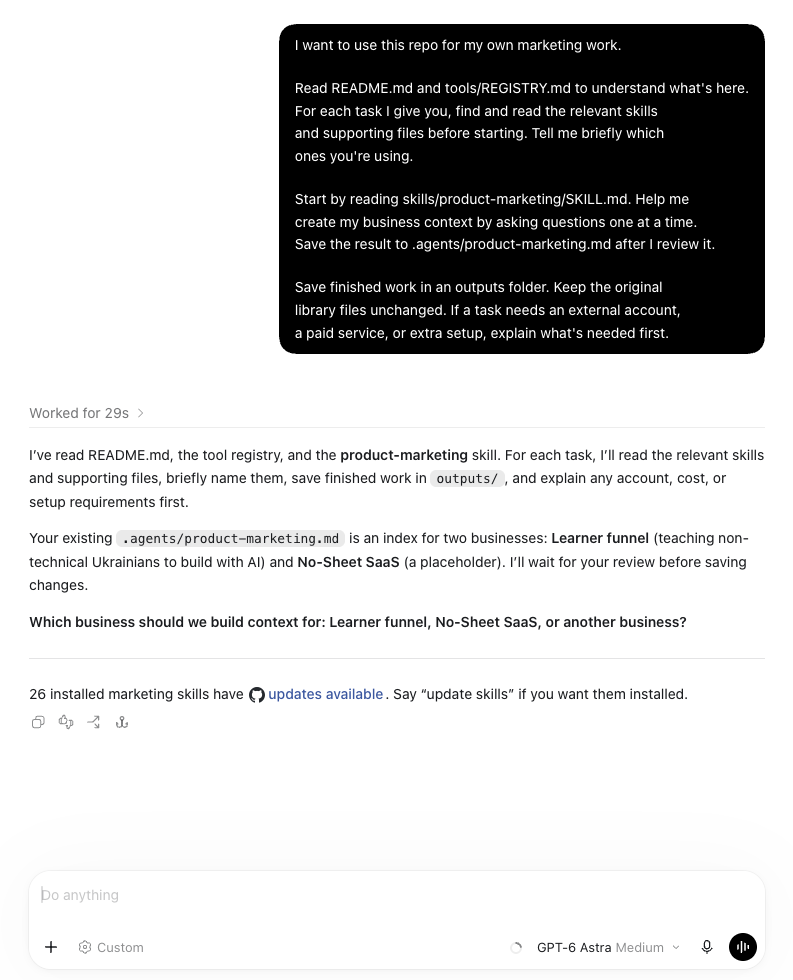
Here, it found existing business details and asked which business to work on. With a fresh setup, it will ask you to describe your business.
4. Give it your business details
Answer its questions about what you sell, who buys it, your pricing, and what you're trying to achieve.
Already have a business brief, website copy, or customer research? Put those files in a folder called my-business inside the repo, then say:
Read the files in my-business first. Use them to draft my
business context, then ask me about anything that's missing.
Don't make up facts, customer results, or testimonials.
Review the summary and correct anything it got wrong. Then ask it to save the file.
You don't need to create .agents/product-marketing.md yourself. The agent does that, so it can read your business context again for later tasks.
5. Give it a real task
Start with something you need now. You don't have to know which skill to choose.
For example:
Read my saved business context and use the relevant resources
in this repo to plan two weeks of Instagram content.

My goal is to get enquiries for [offer]. I can make three posts
a week. For each post, give me the topic, format, hook, and
what I should ask the reader to do next.

Save the plan in outputs as a Markdown file and show it to me.
Or use your own task:
- “Review my homepage copy and rewrite the parts that don't clearly explain my offer.”
- “Write three welcome emails for people who download my free guide.”
- “Help me plan the launch of my new service. My budget is $300 and I have two weeks.”
Give it the page text, files, dates, or other details it needs. Then review what it makes and ask for changes in the same conversation:
The topics work, but the hooks sound too formal. Make them
shorter and closer to how I talk. Update the saved file.
6. Come back to the same folder
For the next task, reopen the project. In a new conversation, say:
Read .agents/product-marketing.md, then find and use the
relevant skills and supporting files in this repo.
Save the result in outputs.

My task: [describe what you need]
Your business context and saved work stay in the folder. Update the context when your offer or audience changes.
When you want to try more
The repo also includes scripts and connection guides for services such as analytics, email, and advertising platforms. Downloading it doesn't connect those accounts. Some tools need separate access, credentials, software, or a paid plan.
You can ask:
Look through the repo for resources that could help with
[task]. Explain what we can do with the files already here,
and what would need another tool or account connected.
You can also install individual skills directly into your agent later. The repo's installation instructions cover that. This guide uses the folder approach throughout.
The repo is by Corey Haines, shared under the MIT license. This guide shows how I use it; it doesn't cover every resource or integration.
Desktop steps checked against OpenAI's project documentation and the supplied desktop screenshots on September 24, 2026. Button names may vary by app version.