GitHub is where people share projects. Each lives in a folder called a repository, or repo. Here are ten worth exploring for your writing, content, business, and everyday work.
The first five are from the reel; the next five are bonus picks. Choose one real task. Each card tells you whether you’re looking at a website, an app, or a skill for an AI assistant.
The five from the reel
1. No AI Slop
github.com/petergyang/no-ai-slop
AI skillFor writing that sounds more like you. This editing skill helps your assistant remove formulaic phrases and unnecessary padding while keeping your vocabulary and tone.
Start here: Open the official installation instructions and choose the route for your assistant. Install the skill, then give it a draft plus a couple of examples of your own writing.
Good to know: The skill is free. You need a compatible assistant; its plan and usage limits still apply.
A prompt for your first try
Use No AI Slop to edit this post. Cut robotic phrases and repetition. Keep my point, facts, and personality. Use the two writing samples below as a voice reference. Don't add claims or anecdotes.

Draft: [paste your draft]
My writing: [paste two short examples]
2. OpenReel Video
github.com/Augani/openreel-video
Browser editorFor getting a video finished. A browser video editor with a timeline, text, music, transitions, and exports without a watermark. Use it to assemble the clips you've filmed or created with other tools.
Start here: Open OpenReel Video in a current Chrome or Edge browser. Import a short clip and make one simple edit before starting a larger project.
Good to know: Free, with no watermark according to the repo. You do the editing; larger projects depend on your computer’s performance.
A first task to try
First task: Trim a clip to 20 seconds, add a title and a music track, then export it. Watch the export to check the sound, text, and framing.
3. Impeccable
AI design skillsFor an AI-built website that feels like your business. Gives an AI builder guidance on typography, spacing, colour, layout, and usability. Useful when a page works but looks generic or feels difficult to follow.
Start here: Visit Impeccable and follow the installation instructions for your builder. Open your website project in that assistant so it can work with the actual files.
Good to know: Free skills; your AI builder may charge for usage. It needs access to your website files to make changes.
A prompt for your first try
Use Impeccable to review my homepage. My audience is [who] and the main action is [what they should do]. Identify the three biggest problems with clarity, fonts, spacing, or mobile layout. Explain the changes before applying them. Keep my brand colours and factual copy.4. MarketingSkills
github.com/coreyhaines31/marketingskills
AI marketing skillsFor turning business details into useful marketing work. A collection of skills for landing-page copy, emails, launch plans, content, and other marketing tasks.
Start here: Follow my Marketing Skills setup guide. It shows how to open the repo in your desktop assistant and give it context about your business.
Good to know: Free skills. Your assistant and any connected marketing services have their own plans and costs.
A prompt for your first try
Use the relevant MarketingSkills resources to plan three welcome emails for people who download my guide.

My business: [what you sell]
Audience: [who it's for]
Guide: [what it helps with]
Next step: [what readers can do next]

Give each email one clear purpose. Ask for any missing details. Don't invent customer stories or results.
5. Handy
Desktop appFor speaking instead of typing. Press a keyboard shortcut, say what you want to write, and insert the transcription into the app you're using. Handy for emails, notes, and longer messages to your AI assistant.
Start here: Download the app from Handy's website. Install it, allow the required microphone and accessibility permissions, download a speech model, and set a shortcut.
Good to know: Free for Mac, Windows, and Linux. Transcription runs locally after model setup; speed and accuracy depend on your computer and model.
A first task to try
First task: Open a blank email and dictate a short reply. Check names and punctuation before sending. Next, try speaking a detailed task into your AI assistant.
Five more for your work
For the other work on your list: slides, meetings, diagrams, finding your notes, and trying a small app idea.
6. Presenton
github.com/presenton/presenton
Desktop appFor turning a document into slides you can edit. Generates presentations from a prompt or document, with editable PowerPoint export.
Start here: Get the desktop app from Presenton. Follow its setup to choose an AI provider, then upload a short document and select a template.
Good to know: Open-source app. Cloud AI generation may cost extra; local models take more setup. Check facts and layout in the exported slides.
A prompt for your first try
Turn this document into a six-slide presentation for my team. Cover the problem, key findings, options, recommendation, and next steps. Use only facts from the document. Flag missing information instead of guessing.7. Meetily
github.com/Zackriya-Solutions/meetily
Desktop appFor leaving a meeting with notes you can use. Captures audio, transcribes the conversation, and generates a summary.
Start here: Get the installer for your computer from the official releases. Follow the app's setup for transcription and summaries. Packaged installers are available for Windows and supported Macs; check compatibility before downloading.
Good to know: Free community version, with separate Pro features. Local summaries need a local model; cloud summaries may send text to a provider and incur charges.
A first task to try
First task: Try a short practice conversation with everyone aware it's being recorded. Compare the transcript and summary with what was said, especially names, decisions, owners, and deadlines.
8. Next AI Draw.io
github.com/DayuanJiang/next-ai-draw-io
Browser demoFor explaining a process visually. Describe the steps and ask it to create or update a diagram. Useful for onboarding, customer requests, or showing a colleague how something works.
Start here: Open the online demo and describe one small process. You can try the browser version without installing anything.
Good to know: The demo has usage limits. Using your own AI provider key may cost extra. Check that the arrows match your real process.
A prompt for your first try
Create a simple flowchart for this process: a customer submits an enquiry; we check whether the request fits our service; if yes, offer a discovery call; if no, send a helpful reply. Label both branches clearly and keep it easy to read.9. Khoj
Web appFor finding answers in your own documents. Add notes or files, then ask questions across them. Useful when you remember discussing something but can't remember where you wrote it down.
Start here: Open the hosted Khoj app and add a few documents about one project. Start small so you can check the answers against the originals.
Good to know: Check the hosted app’s current plans and limits. Review data settings before adding private files, and check important answers against the originals.
A prompt for your first try
Using only these project notes, summarize our latest decisions and unanswered questions. Show the source for each point. If the notes contradict each other, flag the conflict rather than choosing silently.10. Dyad
Desktop AI builderFor trying a small app idea. A desktop AI builder where you describe what you want, inspect the result, and ask for changes. Start with one useful function, such as a quote calculator.
Start here: Follow the download link in the official repo. Install the app and configure an AI provider, then create a small project.
Good to know: Core app is free; AI usage, optional Pro features, and hosting are separate. Start with a prototype and test it before sharing.
A prompt for your first try
Build a simple quote calculator for my service. Let me enter hours and an hourly rate, then show the total. Use sample data. No sign-in, payments, or database. Make it easy to use on a phone. Explain how I can test the calculation.How to get started
A repo is a project folder. Downloading it and installing an app are different things. Open its README first: this is the page below the file list that explains what the project does and how to use it.
1. Look for a ready-to-use version
If the README links to a website or demo, start there. For a desktop app, use the official download page or Releases, then choose the installer for your operating system. Handy and Meetily are examples. A file labelled “Source code (zip)” contains the project’s files, not necessarily a ready-to-run app.
2. For an AI skill, follow your assistant’s instructions
Skills give a compatible AI assistant extra instructions. They do not run on their own. Find the repo’s installation section and choose the option for the assistant you use. Some offer an install command; others use a downloaded folder. A file called SKILL.md may depend on other files, so follow the project’s instructions for the whole skill.
For a walkthrough with screenshots, use my Marketing Skills setup guide.
3. Need the files? Download a ZIP
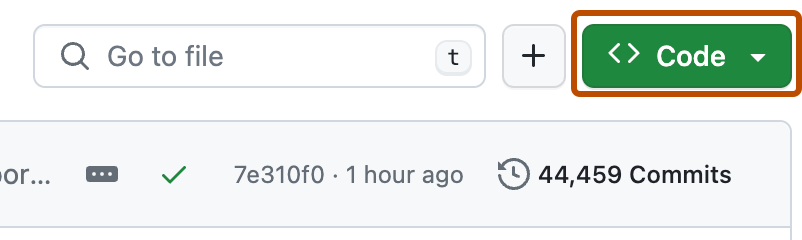
- Open the repo’s main page and find the green Code button above the file list.
- Open that menu and choose Download ZIP.
- Unzip the downloaded file. Then follow the README to open or install the project in the right tool.
Downloading a ZIP does not activate a skill or install the software. If the README jumps straight into terminal commands and you are unsure what they mean, use the Repo Translator below to understand what setup involves.
Repo Translator
Found another interesting repo, but its description leaves you confused? Use this prompt to understand what it can do, whether it fits your task, and what getting started involves.
Use it with the downloaded folder
In Codex desktop or Claude Cowork, your assistant can read the repo’s files directly. This helps it explain the README, skills, examples, and supporting files together.
First, download and unzip the repo using the steps above. Then choose one of the two apps. Click any screenshot to see it at full size.
Add the folder in Codex
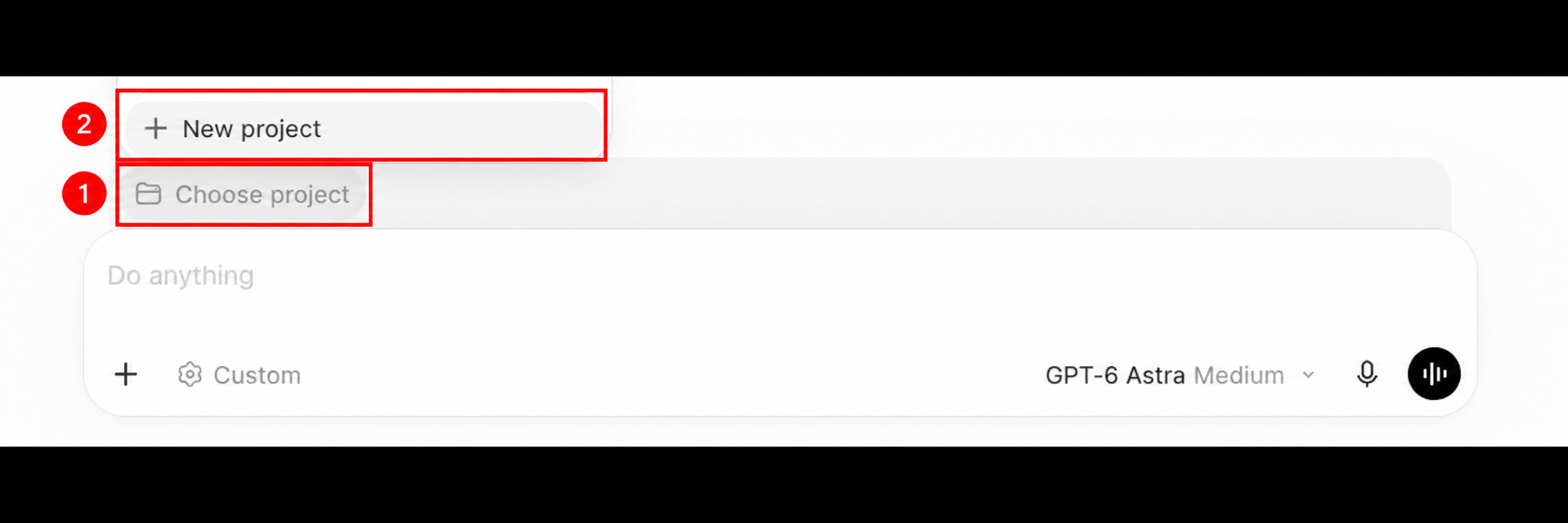
Open the desktop app. Click Choose project, then New project.
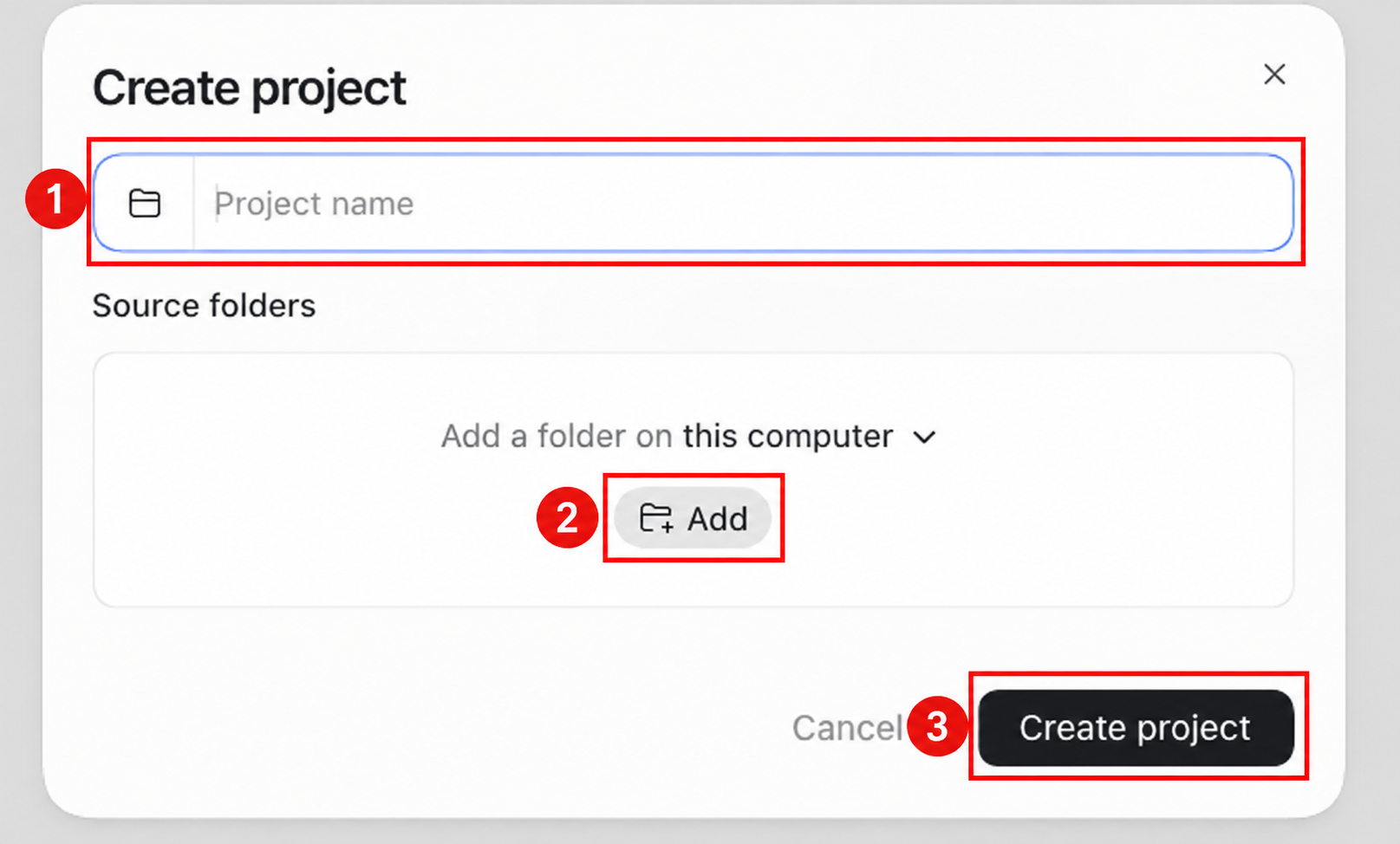
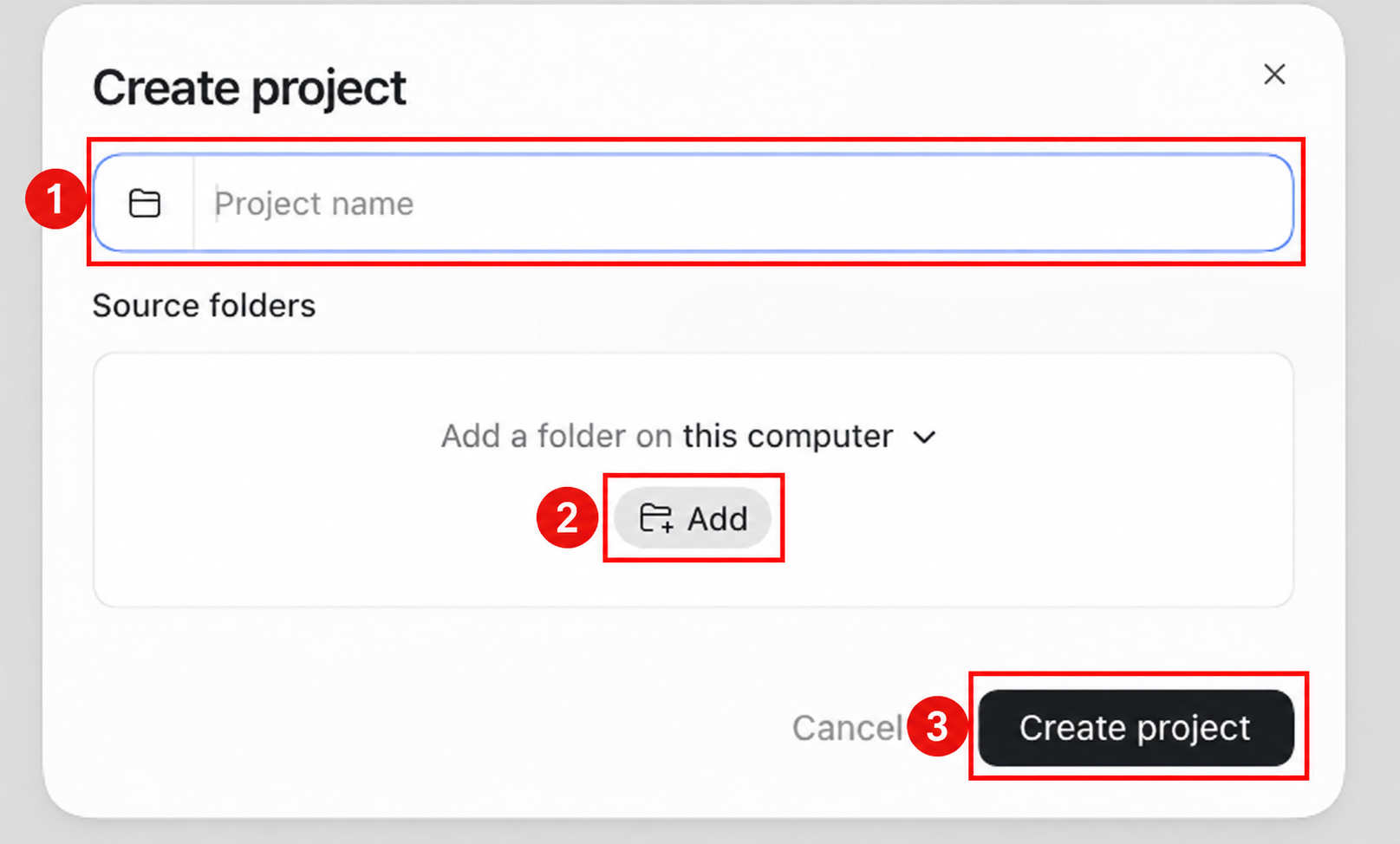
Enter a project name. Under Source folders, click Add and select the extracted repo folder. Click Create project, then start a task in that project.
Add the folder in Claude Cowork
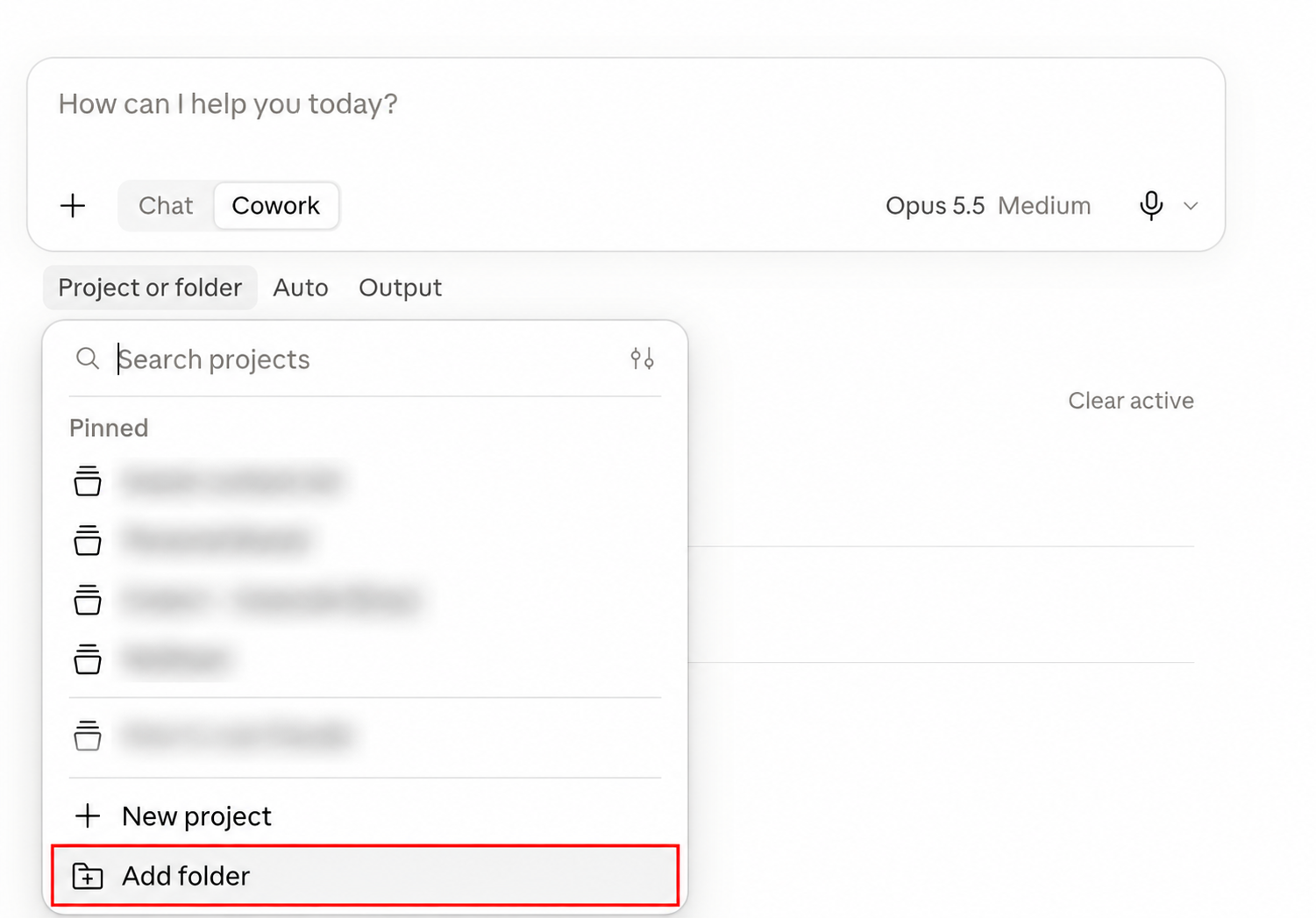
Open Claude Desktop. Select Cowork, then click Project or folder beneath the message box. If your version already combines Chat and Cowork, you can skip the separate mode switch.
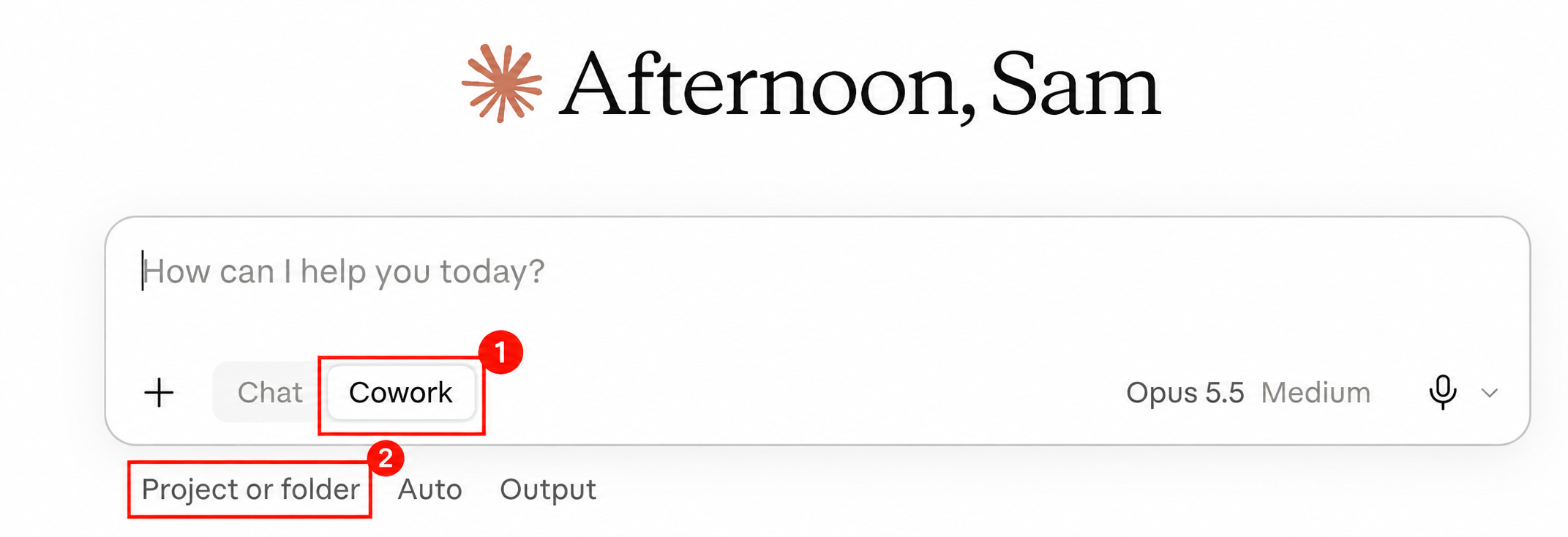
Click Add folder in the menu. Select the extracted repo folder, allow access if prompted, and start your task with that folder selected. Keep Claude Desktop open while it reads local files.
Now paste the prompt below into your task in the app you chose. In the Repository field, write “the selected local folder” or its name. Fill in your task and the tools you use.
Screenshots reused from my Marketing Skills guide. App access and usage limits depend on your plan. Official instructions: Codex projects · Claude Cowork.
Opening a folder lets the assistant read it. Any installation needed to actually use the project comes after that explanation.
Or use a GitHub link in your usual AI chat
Paste the same prompt with the repo link. If your assistant cannot open GitHub, paste the README and any requested supporting files into the chat. Check the proposed setup against the official instructions.
Help me decide whether this GitHub project is useful for my work. Explain it in everyday language, assuming I don't write code.

Repository: [the selected local folder / folder name, or a GitHub link]
My task: [what I want to get done]
My setup: [Mac / Windows / Linux; AI assistant or other tools I already use]

If I have selected a local folder, read its README and relevant documentation, skill instructions, and examples first. Tell me which folder you inspected. Otherwise, read the GitHub repo at the link. Check official setup and pricing pages where needed. If you cannot access the folder or link, ask me to connect the folder or paste the missing files; do not pretend you have read them.

Give me:
1. A two-sentence explanation of what it does, plus one limitation that matters for my task.
2. Three specific ways I could use it, based on documented features. Say if it is a poor fit.
3. The simplest supported starting route: website, desktop app, AI skill, or code that needs technical setup. Link to the official starting point. Explain what I must already have.
4. What is free and what might cost money: subscriptions, model/API usage, or hosting. Explain any new terms. Flag prices or details you cannot verify.
5. Numbered setup steps for my device and tools. Use documented instructions only; do not invent commands. Say clearly if technical help is needed.
6. One small first task and a practical way to check whether the result is correct.

Cite the local file paths or official links that support your claims. Separate confirmed features from your suggestions. Don't infer quality or safety from star counts. Use read-only inspection for now: explain the setup without executing project code, installing dependencies, or changing files. Ask only for missing information that affects your recommendation.
Save it for later: a plain-text version is available in the companion files.
Choose one and try it
My suggested starting point: Handy if typing slows you down, No AI Slop if you already write with AI, or Next AI Draw.io if you need to explain a process.
Give it a small real task. Check the result. Keep it if it makes your work easier.
Compiled by Sam Cherkasov. Project documentation checked on 30 September 2026. The repo links above are the sources for features and setup. These are suggested first tasks, not hands-on reliability benchmarks. Features, compatibility, and pricing can change.